Affiliate disclosure: Some links in this guide are affiliate links. If you buy through them we earn a small commission at no extra cost to you. We only recommend products we have personally tested or thoroughly researched.
My neighbour Barbara is 58 and runs her own catering business. She is not someone who lacks intelligence or curiosity. She bought a smart speaker two years ago, set it up to play the radio, and has used it for nothing else since. When I asked her why, she said: “I looked at the instructions for automations. There were seventeen steps and I had to create an account for something I had never heard of. I closed the app and made a cup of tea.”
Barbara’s problem is not the technology. It is the assumption baked into most smart home content that you already know what you are doing, that you will figure the rest out, and that the setup cost is someone else’s problem. This guide starts from a different place. Three specific automations, two versions of each (a dream setup and a budget version), and instructions written for someone who would rather be doing almost anything else than configuring an app.
Three one-phrase automations worth setting up: Goodnight Mode (lights off, white noise, done), Work Mode (turn off standby devices, lower the heating, leave), and Care Mode (lights at dusk, gentle reminders, no cameras). Each has a dream version and a budget version. The budget version of each costs under £65 / $75 and takes under 20 minutes to set up.
Why Named Modes Work Better Than Random Automations
A named mode is a single command that triggers a chain of actions your home already knows how to do. “Goodnight” turns off three lights, starts a white-noise track, and lowers the thermostat. One phrase. No thinking. No app-switching. No decisions at the end of a long day. This is not a technical feature. It is a design principle: the fewer decisions between you and the outcome, the more reliably it gets used.
Most smart home content teaches you how to configure individual devices. That is not the problem most people over 40 have. The problem is that individual devices, individually controlled, create more things to remember and manage . not fewer. A smart bulb you have to tell what to do every evening is just a more expensive light switch. A named mode that handles everything in one go is a genuine improvement to your day.
The three modes below were chosen because they address three specific moments that benefit most from reducing friction: the end of the day, the start of the working day, and the daily management of a family member who does not live with you. Each can be set up in under 20 minutes. Each has a version that costs nothing beyond one smart speaker and one smart plug, which you may already own. If you are new to smart home devices entirely, read our beginner’s guide first for a plain explanation of how ecosystems and devices work together.
Goodnight Mode
Goodnight Mode is the single most useful automation you can build. You say one phrase . or press one button . and every light you care about turns off, soft audio starts if you want it, and the heating drops to overnight temperature. No room-by-room checking. No creeping back downstairs because you are not sure about the living room light. Done, and going to bed.
Life Modes Setup Sheet: exact Alexa and Google Home steps for all three modes, a troubleshooting checklist, and the five questions for Care Mode. Join the SAL newsletter and we will send it straight to your inbox.
Before you start (3 minutes)
- Know which lights you want included. Write them down: “living room lamp, hallway light, kitchen under-cabinet.”
- Decide on your trigger phrase. “Goodnight” is the simplest. Pick something you will actually say.
- Decide whether you want white noise or music as part of the routine, or just silence.
Setting it up: the steps (10 minutes on Alexa)
Open the Alexa app on your phone. Tap More at the bottom right, then Routines, then the plus icon in the top right corner. Name the routine “Goodnight.” Under When this happens, tap Voice and type the phrase you chose. Under Add action, tap Smart Home, then Control device, then select all the lights you listed. Set action to Turn off. If you want white noise or a playlist, add a second action: Music, then choose your preferred source and track. If you have a smart thermostat, add a third action to drop the temperature. Tap Save. Say your phrase to test it.
On Google Home: open the app, tap Automations at the bottom, tap the plus icon, choose Personal automation. Under Starter, choose When I say to Google Assistant. Type your phrase. Under Action, choose Control devices and select your lights. Tap Save.
The dream version vs. the budget version
| What it does | Dream version | Budget version (this week) |
|---|---|---|
| Lights off | Smart bulbs in every room, all controlled | One smart plug on the lamp you always forget |
| Audio | Smart speaker plays sleep sounds automatically | Same . one Echo Dot handles this for free |
| Temperature | Smart thermostat drops to 18°C automatically | Skip for now . open a window instead |
| Lock doors | Smart lock confirms locked via the app | Skip . check manually until you have a lock |
The budget Goodnight Mode requires one smart speaker and one smart plug. Total cost if you own neither: approximately £65 / $75. It handles the lamp you always forget and plays the audio. That is worth the setup time before you buy anything else.
Work Mode
Work Mode is the leaving-the-house routine made automatic. One phrase when you head out the door, and the heating drops, standby devices switch off, and you get a spoken reminder of anything you said you needed to bring. The point is not the technology. The point is removing ten small decisions from a moment in the day that is already rushed and high-friction.
Before you start (3 minutes)
- Identify the two or three devices you always leave on by accident: the television standby, the desktop computer, the kitchen radio.
- Decide on your trigger phrase. “I am leaving” or “leaving now” works well because it is natural speech.
- Note one thing you regularly forget to bring. That becomes the first item in the spoken reminder.
Setting it up (10 minutes on Alexa)
In the Alexa app: More, Routines, plus icon. Name it “Leaving.” Set the trigger to Voice, with your chosen phrase. Add action: Alexa Says, Customised. Type a spoken checklist: “Before you go. Have you got your keys, your phone, and your bag?” Add a second action: Smart Home, Control device. Select all plugs and lights to turn off. If you have a smart thermostat, add it here with the Eco or Away setting. Save. Say the phrase once to test. The first time you walk out of the door and hear the list, it feels useful rather than gimmicky.
The energy saving is a genuine side benefit. A smart plug on the television setup, cutting standby power when you leave, typically saves £30–50 / $38–63 per year on its own. The full picture on standby savings is in our energy tools guide. The bigger benefit for most people is not the money but the mental release of not having to wonder, on the bus, whether they left the kitchen light on.
When people set up a leaving routine for the first time, the feedback is almost always the same: “I did not realise how much mental energy I was spending on those small checks.” The routine does not save time in any measurable sense. It saves the background hum of doubt. That turns out to be more valuable than the five minutes.
Care Mode
Care Mode is for setting up automations in someone else’s home . an ageing parent, a partner recovering from illness, a family member who lives alone and could benefit from gentle ambient prompts. The rule that governs this entire section is: nothing that monitors without consent, nothing that creates anxiety in the person being helped, and nothing that requires the person to learn new technology. Automation should feel like the house is looking after them, not like they are being watched.
The most effective care automations are ones that happen without requiring the person to do anything. Lights that come on at dusk automatically. A lamp that turns on at 7pm as a gentle visual cue for dinner. A smart speaker in the kitchen that can be asked for a reminder without needing to navigate menus. The goal is ambient support, not surveillance. Every automation in this section can be removed without any trace when circumstances change. See our external brain guide for the fuller framework behind ambient automation that reduces cognitive load without adding complexity.
Before you start (3 minutes)
- Have the conversation first. Tell the person what you want to set up and why. Ask if they are comfortable with it. Do not install anything without their knowledge.
- Find out what their actual difficult moments are. Is it remembering to take medication? Forgetting to eat? Not turning lights on when it gets dark?
- Aim for one automation per visit. One thing that works reliably is worth more than five things that need explaining.
Setting it up (10 minutes)
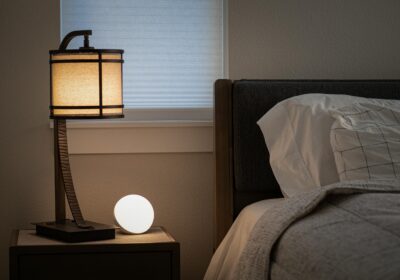
Lights at dusk: in the Alexa or Google Home app, set a smart plug or smart bulb on a sunset-triggered schedule. Most apps have a “sunset” option that adjusts automatically as the year progresses. You do not need to update it seasonally. This is the single most valuable automation for someone who forgets or struggles to manage lighting as the evening draws in.
Gentle reminders: if the person is comfortable using a smart speaker for voice queries, set up one named routine. “Alexa, remind me at 7pm every day: time for dinner.” That is a single spoken instruction the person gives once . or that you set up in the app once. It fires every day without further input. For medication reminders, the same approach works: a quiet spoken reminder at the same time each day, with no flashing notification or alarm, just a calm voice saying the right thing at the right moment.
The smart speaker choice matters here. The Amazon Echo Show 5 has a small screen that can display a photo, the time, and upcoming reminders without any interaction needed. That persistent visual display is useful for people who find audio reminders easy to ignore. Our smart speakers guide covers the full comparison, including the privacy considerations that matter when a device is going into someone else’s home.
It is not monitoring: None of the automations above track location, activity, or health without explicit setup and consent. A motion-triggered night light is useful. A motion sensor that sends alerts to your phone every time the person moves is surveillance, and most people, when asked directly, do not want it.
It is not a substitute for care: Automations can reduce friction and provide gentle prompts. They cannot replace human contact, professional care, or a GP. If you are setting these up because you are worried about someone’s safety or cognition, that concern belongs in a conversation with a professional as well as in an app.
It does not need to be complicated: One smart plug on a lamp. One scheduled reminder. That is a complete first version of Care Mode. Add from there only if the person finds it useful and asks for more.
What to Buy First
If you own nothing smart yet, buy in this order: one smart speaker, one smart plug. The speaker gives you the voice trigger for all three modes. The plug gives you something to control. Together, they cost approximately £65 / $75 and enable a Goodnight Mode, a Work Mode, and the basic Care Mode reminder. That is the useful starting point. Everything else is optional until you have used these for a month and know what you actually want.
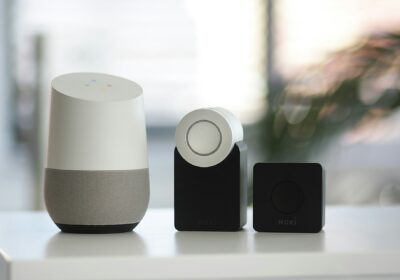
The trigger for all three modes. Say the phrase, the routine runs. Built-in temperature sensor. Works with virtually every smart home device. Put it where you spend most time . kitchen counter or hallway shelf are the two highest-impact positions for a first device. If privacy matters more than broad compatibility, see our smart speakers guide for the full comparison.
Buy this firstThe first device to control. Put it behind the lamp you always forget, or the television standby setup, or the kitchen radio. Set it to turn off when you say your Work Mode phrase. Set it to turn on at dusk for Care Mode. One plug, three uses. No hub needed. Works with Alexa and Google Home out of the box.
Buy this secondFor Care Mode specifically. The small screen shows the time, upcoming reminders, and a photo without any interaction. Useful for someone who finds audio-only reminders easy to tune out. Place it in the kitchen or on a bedside table. Does not require the person to learn anything beyond saying “Alexa” occasionally.
For Care Mode . visual remindersLife Modes Setup Sheet: exact Alexa and Google Home steps for all three modes, a troubleshooting checklist, and the five questions for Care Mode. Join the SAL newsletter and we will send it straight to your inbox.
Some links in this guide are affiliate links. If you buy through them we earn a small commission at no extra cost to you. We only link to products we have personally tested or thoroughly researched.
Common Questions
How do I create a Goodnight routine on Alexa?
Alexa app: More, Routines, plus icon, name it, set Voice as the trigger, type your phrase, add Smart Home action, select your lights, set to Turn off. Add a music action if you want audio. Save. Test it by saying the phrase. The whole process takes under ten minutes if you know which lights you want included.
Do I need to be technical to do this?
No. The Alexa and Google Home apps use plain-language menus. Nothing requires code, nothing requires a hub, and nothing requires understanding how any of the underlying technology works. If you can send a text message on a smartphone, you can set up any of the three routines in this guide. The first one takes the longest because it is unfamiliar. The second takes half as long.
What if I press the wrong thing?
Nothing breaks. Smart home apps do not have irreversible actions. If a routine does not work the way you expected, delete it and start again. If a device setting is wrong, change it. The worst realistic outcome is a light stays on when it should be off, or a phrase does not trigger anything. Neither of these is a problem . it is just a setting to adjust.
What is the difference between a scene and a routine?
A scene is a saved group of device states: lights at 30%, warm colour, fan on. A routine is a trigger that activates a scene or a sequence of actions. Build the scene first, then build the routine that triggers it. On Alexa, both are created in the same Routines section of the app. You can add as many actions to a routine as you need . lights, audio, thermostat, and a spoken reminder can all be part of one “Goodnight” routine.

Leave a Reply